


Gemini API: what file sizes & input methods are supported now?
On January 12, 2026 Google published a developer update to the Gemini API that changes how you get files into the model and how large those files can be. In short: Gemini now fetches files directly from external links and cloud storage (so you don't always have to upload them), and the inline file size limit has been raised substantially. These updates remove friction for real-world apps that already store media or documents in cloud buckets, and make short prototyping and production workflows faster and cheaper.
CometAPI provides gemini api such as ,Gemini 3 Pro and gemini 3 flash, And it has an attractive price.
Key updates — what’s new of Gemini API?
-
Directly reads external file links
— Gemini can fetch files from:
- Public HTTPS URLs and signed URLs (S3 presigned URLs, Azure SAS, etc.).
- Google Cloud Storage (GCS) object registration (register a GCS object once and reuse it).
-
Increased inline file size — inline (in-request) payload limits moved from 20 MB → 100 MB (note: some file types, like PDFs, may have slightly different effective limits noted in docs).
-
Files API & batch guidance unchanged for very large files — For files you intend to reuse or files larger than the inline/external limits, continue to use the Files API (per-file max 2 GB, projects can hold up to 20 GB of Files API storage; uploaded Files are stored for 48 hours by default). GCS registration also supports large files (2 GB per file) and can be registered for reuse.
-
Model compatibility notes — some older model families or specialized flavors may have different support (the docs call out exceptions such as certain Gemini 2.0 family models for some file-URI workflows). Always confirm model-specific docs before sending large assets.
Why does Gemini API’s file-handling capabilities change matter?
Prior to this update, if you wanted the Gemini API (Google's AI model) to analyze files such as: a PDF report; a video; an audio file; or some images; you had to first upload the files to Gemini's temporary storage.
And:
- uploaded files were deleted after 48 hours;
- files couldn't be too large (maximum 20MB);
- if your files were already hosted in the cloud (such as GCS, S3, or Azure), you had to re-upload them—very inconvenient.
That doubled developer effort, increased bandwidth costs, introduced latency, and sometimes made real-world use cases (long recordings, multi-page manuals, high-res images) impractical. The combination of larger inline payloads plus the ability to point Gemini at existing storage (via public or signed URLs, or registered GCS objects) dramatically shortens that path from “data” to “useful model output.”:
- Zero-Copy Efficiency: By allowing Gemini to read directly from your existing storage buckets (GCS) or external URLs (AWS S3, Azure), you eliminate the "ETL tax." You no longer need to download a file to your backend server only to re-upload it to Google. The model comes to the data, not the other way around.
- Stateless Architecture: The increased 100MB inline limit allows for more powerful "stateless" requests. You don't need to manage the lifecycle of a file ID or worry about cleaning up old uploads for every single interaction.
- Multi-Cloud Agnosticism: The support for signed URLs allows the Gemini API to play nicely with data lakes hosted on AWS or Azure. This is a massive win for enterprises with multi-cloud strategies, allowing them to leverage Gemini's reasoning capabilities without migrating their entire storage infrastructure to Google Cloud.
- Suitable for multimodal AI applications (such as video, voice, and document understanding).
These updates significantly simplify the data ingestion process, enabling developers to directly access existing data from the cloud or network to Gemini without additional upload steps.
Who benefits the most?
- Product teams building document-centric features (summarization, Q&A over manuals, contract review).
- Media/entertainment apps that analyze images, audio, or video assets already stored in the cloud.
- Enterprises with large data lakes in GCS that want the model to reference canonical copies instead of duplicating them.
- Researchers and engineers who want to prototype with larger, real datasets without building complicated storage pipelines.
In short: from prototype to production becomes easier and cheaper.
What size file can you upload to Gemini API Now?
The headline number is a five-fold increase in immediate capacity, but the real story lies in the flexibility it offers.
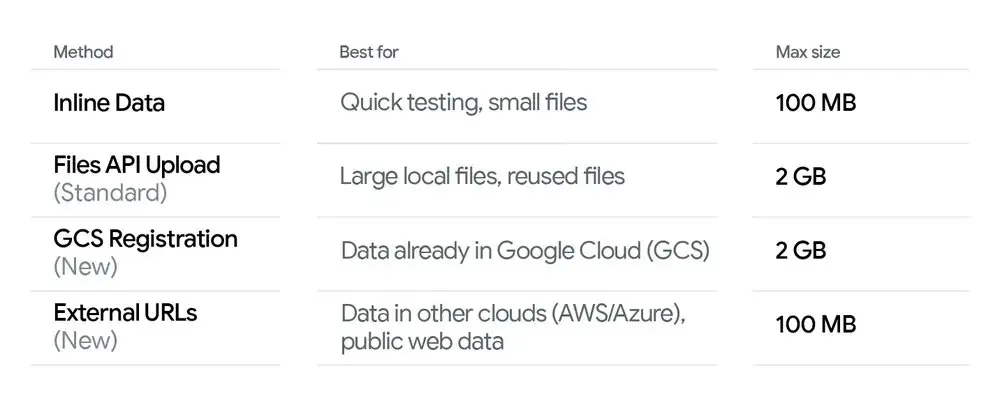
How big a file can you upload to Gemini API now via different methods ?
- Inline in a request (base64 or Part.from_bytes): up to 100 MB (50 MB for some PDF-specific workflows ). Use this when you want a simple single-request flow and the file is ≤100 MB.
- External HTTP / Signed URL fetched by Gemini: up to 100 MB (Gemini will fetch the URL during processing). Use this to avoid re-uploading content from external clouds.
- Files API (upload): up to 2 GB per file, project Files storage up to 20 GB, files stored for 48 hours. Use this for large files that you’ll reuse or that exceed the 100 MB inline/external limit.
- GCS object registration: supports up to 2 GB per object and is intended for large files already hosted in Google Cloud; registration allows reuse without repeated uploads. One-time registration can grant access for a limited period.
(Which exact choice to make depends on file size, frequency of reuse, and whether the file already lives in cloud storage.)
The New 100MB Standard
Effective immediately, the Gemini API has increased the file size limit for inline data from 20MB to 100MB.
Previously, developers working with high-resolution images, complex PDF contracts, or moderate-length audio clips often hit the 20MB ceiling. This forced them to implement complex workarounds, such as chunking data, downsampling media, or managing a separate upload flow via the Files API even for relatively small interactions.
With the new 100MB limit, you can now send significantly larger payloads directly in the API request (base64 encoded). This is a critical improvement for:
- Real-time Applications: Processing a 50MB user-uploaded video for instant sentiment analysis without waiting for an asynchronous upload job to complete.
- Rapid Prototyping: dropping a complex dataset or a full-length book PDF into the context window to test a prompt strategy immediately.
- Complex Multimodality: Sending a combination of 4K images and high-fidelity audio segments in a single turn without worrying about hitting a restrictive cap.
It is important to note that while the inline limit is 100MB, the Gemini API's capacity to process massive datasets (terabytes of data) remains available via the Files API and the new External Link support, effectively removing the upper bound for heavy workloads.
Recommended decision flow
- If file ≤ 100 MB and you prefer single-request simplicity: use inline (Part.from_bytes or supply base64). Good for quick demos or serverless functions.
- If file ≤ 100 MB and is already hosted somewhere public or via a pre-signed URL: pass the file_uri (HTTPS or signed URL). No upload required.
- If file > 100 MB (and ≤ 2 GB) or you expect to reuse it: Files API upload or GCS object registration is recommended — it reduces repeated uploads and improves latency for repeated generations.
How does the new external file link support work?
The most significant architectural change is the ability for the Gemini API to "fetch" data on its own. This capability is to Directly reads external file links, supporting built-in data sources
The API can now ingest data directly from URLs. This support covers two distinct scenarios:
(1) External URL support (Public / Signed URLs):
You can now pass a standard HTTPS URL pointing to a file (like a PDF, image, or video) directly in your generation request.
Public URLs: Ideal for analyzing content that is already on the open web, such as a news article PDF or a publicly hosted image.
Signed URLs: This is the enterprise bridge. If your data sits in a private AWS S3 bucket or Azure Blob Storage, you can generate a Pre-Signed URL (a temporary link that grants read access). When you pass this URL to Gemini, the API securely fetches the content during processing. This implies you can use Gemini to analyze sensitive documents stored in AWS without permanently moving them to Google's servers.
It respects Google Cloud IAM roles, meaning you can control access using the standard "Storage Object Viewer" permissions.
Benefits: No need for intermediary files, improving security and performance, suitable for data retrieval across cloud environments.
(2) Direct connection to Google Cloud Storage (GCS):
For data already within the Google ecosystem, the integration is even tighter. You can now perform Object Registration for GCS files.
Instead of uploading, you simply "register" the file's gs:// URI.
This process is nearly instantaneous because no actual data transfer occurs between your client and the API.
How do you use the new features? — Usage examples (Python SDK)
Below are three practical Python examples (synchronous) that illustrate the common patterns: (A) inline bytes (from a local file), (B) external HTTPS or signed URL, and (C) referencing a GCS URI (registered object). These snippets use the official Google Gen AI Python SDK (google-genai) , Adjust model names, authentication, and environment variables to match your setup. You can use CometAPI's API key to access the Gemini API, an AI API aggregation platform that offers cheaper API call prices to help developers.
Prerequisite:
pip install --upgrade google-genaiand set your credentials / environment variables (for Developer APIAPI_KEY, for Vertex AI setGOOGLE_GENAI_USE_VERTEXAI,GOOGLE_CLOUD_PROJECT,GOOGLE_CLOUD_LOCATION).
Example A: Inline bytes (local file → send up to 100 MB)
# Example A: send a local file's bytes inline (suitable up to 100 MB)from google import genaifrom google.genai import types# Create client (Developer API)client = genai.Client(api_key="YOUR_GEMINI_API_KEY")MODEL = "gemini-2.5-flash" # choose model; production models may differfile_path = "large_document.pdf" # local file <= ~100 MBmime_type = "application/pdf"# Read bytes and create an inline Partwith open(file_path, "rb") as f: data = f.read()part = types.Part.from_bytes(data=data, mime_type=mime_type)# Send the file inline with a textual promptresponse = client.models.generate_content( model=MODEL, contents=[ "Please summarize the attached document in one paragraph.", part, ],)print(response.text)client.close()
Notes: this uses Part.from_bytes(...) to embed file bytes. Inline payloads are now permitted up to ~100 MB. If you exceed that, use a GCS or Files API approach.
Example B: External HTTPS / signed URL (Gemini fetches the payload)
# Example B: reference a public HTTPS URL or a signed URL (Gemini fetches it)from google import genaifrom google.genai import typesclient = genai.Client(api_key="YOUR_API_KEY")MODEL = "gemini-2.5-flash"# Public or signed URL to a PDF/image/audio/etc.external_url = "https://example.com/reports/quarterly_report.pdf"# or a pre-signed S3/Azure URL:# external_url = "https://s3.amazonaws.com/yourbucket/obj?X-Amz-..."part = types.Part.from_uri(file_uri=external_url, mime_type="application/pdf")response = client.models.generate_content( model=MODEL, contents=[ "Give me the three key takeaways from this report.", part, ],)print(response.text)client.close()
Notes: Gemini will fetch the external_url at request time. Use signed URLs for private cloud storage providers (AWS/Azure). External fetches have practical size/format limits (see docs).
Example C: Reference a GCS object (gs://) directly
# Example C: reference a GCS file (ensure service account has storage access)from google import genaifrom google.genai import types# For Vertex AI usage, standard practice is to use ADC (Application Default Credentials)client = genai.Client(vertexai=True, project="your-project-id", location="us-central1")MODEL = "gemini-3-pro" # example model idgcs_uri = "gs://my-bucket/path/to/manual.pdf"part = types.Part.from_uri(file_uri=gcs_uri, mime_type="application/pdf")response = client.models.generate_content( model=MODEL, contents=[ "Extract the section titles from the attached manual and list them.", part, ],)print(response.text)client.close()
Notes: GCS access requires correct IAM and service account setup (object viewer permissions, proper authentication). When you register or reference GCS objects, ensure the runtime environment (Vertex / ADC / service account) has the necessary permissions.
limitations and security considerations
Size and content-type constraints
External fetch size: external URL fetching is subject to the documented limits (100 MB per fetched payload in practice) and supported MIME/content types. If you need to pass very large assets (multi-GB), use the Files API or a different processing pipeline.
Files API vs inline vs external URL: when to use which
- Inline (from_bytes) — simplest for single one-off files where your application already has the bytes and size ≤100 MB. Good for experimentation and small services.
- External URL / Signed URL — best when the file lives elsewhere (S3, Azure, public web); avoids moving bytes and reduces bandwidth. Use signed URLs for private assets.
- GCS / Registered objects — best when your data is already on Google Cloud and you want a production pattern with stable references and IAM controls.
- Files API — use for persistent or very large files that you want to reuse across multiple requests; note per-file and project quotas and retention/ephermality policies.
Security and privacy
- Signed URLs: pre-signed URLs should be generated with a limited lifetime and narrow permissions. Do not embed long-lived secrets in requests.
- IAM & OAuth: for GCS direct access, set service accounts with principle of least privilege (objectViewer for read access). Follow your organization’s key rotation and logging best practices.
- Data residency & compliance: when you let the API fetch external content, ensure that doing so complies with your data handling and regulatory requirements (some regulated data must not be sent to an external service, even if temporarily). The model provider may persist metadata about requests within logs — account for that in your privacy analysis.
Operational caveats
- Transient Files API storage: files uploaded to the Files API may be ephemeral (historically 48 hours); for long-term storage use GCS or other durable stores and reference them directly.
- Repeated fetching: if a file is referenced via URL on every request and used frequently, you may incur repeated fetch overheads; consider caching or registering a GCS copy for heavy reuse.
How this changes app architecture — practical examples
Use-case — document-heavy knowledge assistant
If you run an internal knowledge assistant that reads product manuals stored in GCS, register those GCS objects once (or point with gs:// URIs) and query them dynamically. That avoids re-uploading the same PDFs repeatedly and keeps your backend simpler. Use Files API/GCS registration for very large manuals (>100 MB).
Use-case — consumer mobile app sending photos
For a mobile app that sends images for single-shot captioning, use inline bytes for small images (<100 MB). That keeps the UX simple and avoids a second upload step. If users will reuse or share the same image frequently, store it in GCS and pass a gs:// or signed URL instead.
Use-case — audio transcription pipelines
Short voice notes (<100 MB / < ~1 minute depending on codec) can be passed inline or via signed URL. For long recordings, upload via Files API and reference the file in subsequent generate calls for efficient reuse. Video/audio workflows often have additional best-practice notes in the media docs.
Conclusion
Google’s Gemini API update makes it far easier to bring “existing” data into generative AI workflows: direct fetch from public or signed URLs and GCS registration remove a common operational friction point, and the jump from 20 MB → 100 MB for inline payloads gives engineers more flexibility for simple, single-request flows. For long-lived, very large, or repeatedly used files, the Files API (2 GB per file, 48-hour default storage)
All rights reserved